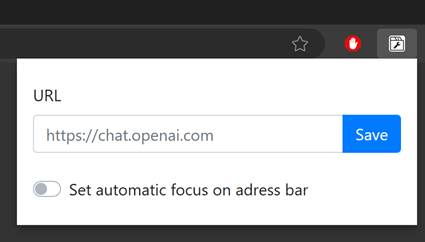
Since I don’t know how to configure the browser to use ChatGPT as a search engine, I just configured Microsoft Edge to load ChatGPT when I open a new browser tab. Warning: I’m already a bit annoyed with this functionality, though it could be encouraging me to just leave tabs open instead of opening new tabs as often as I do. Jump to the bottom to see an alternative.
Update 15.Dec.2025: After years of frustration with WordPress, I am finally abandoning this blog. The content will likely stay here for some time, but new content will appear here:
I had to install this plugin:
Then I had to enable it:
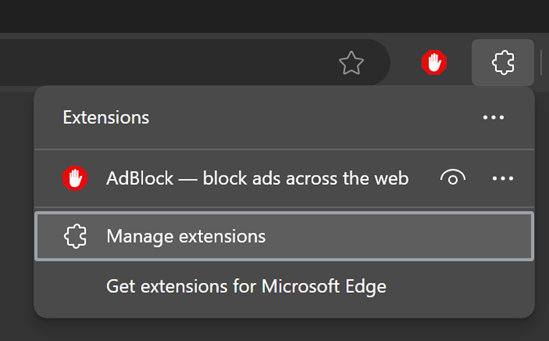

Then I had to show it:
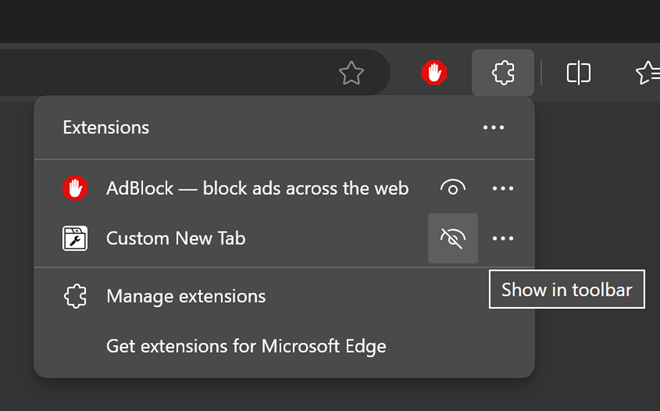
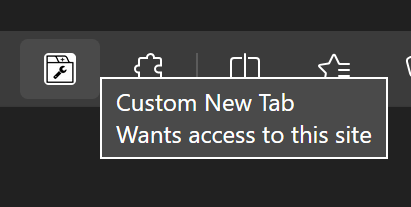
Then I could click the wrench icon to use it:
I cleared the option to focus on the adress [sic] bar by default, which puts the cursor in the ChatGPT prompt box by default:

This is somewhat annoying if you want a new tab that doesn’t use ChatGPT.
If you set this option and the Edge sidebar is showing, then after opening a new tab, you can SHFT-Tab about 15 times to get the cursor into the prompt field. If the sidebar is not showing, you only have to SHFT-Tab about 10 times. There are extensions that can simplify setting the focus on the prompt box, but for now I just cleared this setting and I’ll try to get into the habit of using Ctrl+L to put the cursor in the address bar when I want a new tab that doesn’t use ChatGPT.
Then I right-clicked the wrench icon to hide the extension.
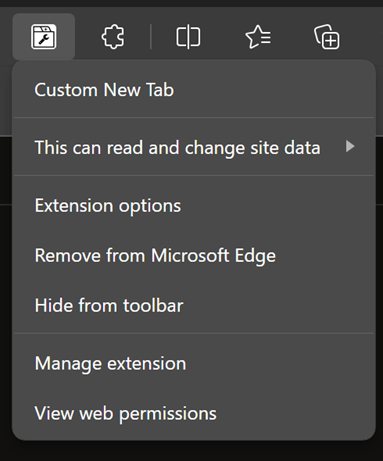
Update: Gah! I should have asked ChatGPT first. “how do I configure a browser to use chatgpt as a search engine”
Microsoft Edge
- Open Edge Settings:
- Click the three horizontal dots in the top-right corner.
- Select “Settings.”
- Manage Search Engines:
- Under “Privacy, search, and services,” scroll down to “Address bar and search.”
- Click “Manage search engines.”
- Add a New Search Engine:
- Click “Add.”
- Enter Search Engine Details:
- Search engine: ChatGPT (or any name you prefer)
- Keyword: chatgpt (or any keyword you want to use)
- URL with %s in place of query:
https://chat.openai.com/chat?q=%s
- Set as Default (Optional):
- Find the newly added search engine in the list.
- Click the three horizontal dots next to it and select “Make default.”
Then either start your search queries using the shortcut that you assigned to that search engine (“chatgpt <question>”) or set ChatGPT as your default search engine.
 deliverystack.net